You’ve spent hours tracking deer, unlocking high-end rifles, and building your hunter profile in Hunting Simulator 2—but now you’re ready for a fresh start. Maybe you regret early choices, your game is glitching, or you just want to experience the thrill of the first hunt all over again. The problem? After the Ranger DLC update, the familiar “New Game” button vanished from the main menu, leaving many players confused about how to truly reset.
Good news: you can fully reset Hunting Simulator 2—but it’s not automatic. Unlike older games with a simple “Start New Game” option, Hunting Simulator 2 now requires you to actively clear your progress before beginning anew. Whether you’re on PC (Steam), PlayStation, or Xbox, this guide walks you through every reliable method to wipe your save data and restart from zero. You’ll also learn how to avoid the #1 mistake: cloud saves silently restoring your old game after a reset.
By the end, you’ll know exactly how to completely reset Hunting Simulator 2—no lingering progress, no corrupted files, just a clean hunting adventure waiting to begin.
Use In-Game Clear Save Option
The safest and fastest way to reset Hunting Simulator 2 is using the built-in Clear Save Data feature. This option permanently deletes all your progress and returns the game to its factory state.
Access Clear Save Data
To reset your game via the in-game menu:
- Launch Hunting Simulator 2.
- Navigate to Options > Gameplay.
- Scroll down until you see “Clear Save Data”.
- Select it and confirm the action when prompted.
This single step removes everything: completed hunts, unlocked licenses, purchased gear, animal tracking logs, and player stats. Once confirmed, the game resets entirely. When you relaunch, you’ll be greeted with the Ranger Mode and Hunter Mode selection screen—just like your very first playthrough.
✅ Pro Tip: This method is available on both PC and consoles, but only if your game is updated. Older versions may not have the option—always patch to the latest release before attempting a reset.
Why Hunter Mode Starts a New Game
After clearing your save data, selecting Hunter Mode triggers a full campaign restart. There’s no “New Game” button anymore—it was removed after the Ranger DLC merged both modes into the main menu.
Here’s how it works:
– If no save file exists, the game treats Hunter Mode as a new campaign.
– You’ll start with basic gear, no licenses, and a blank animal log.
– Objectives, quests, and progression reset completely.
⚠️ Warning: This action is permanent and irreversible. There’s no “undo.” If you’re unsure, back up your save first (see backup instructions below).
Restart Game on PC (Steam)
Sometimes Hunting Simulator 2 appears frozen or won’t load after a reset attempt. A proper restart ensures no background processes interfere with a clean launch.
Close Game via Task Manager
Even after closing the game, Hunting Simulator 2 may continue running in the background. To fully shut it down:
- Press Ctrl + Shift + Esc to open Task Manager.
- Look for:
–HuntingSimulator2.exe
– Any Unreal Engine or Excalibur Games processes - Right-click each and select End Task.
This clears all active game memory and prevents conflicts during relaunch.
Relaunch and Verify Game Files
If the game crashes or loads old data unexpectedly, corrupted files might be the culprit. Fix them with Steam’s built-in repair tool:
- Open Steam.
- Go to Library.
- Right-click Hunting Simulator 2 → Properties → Local Files.
- Click Verify Integrity of Game Files.
Steam will scan for missing or damaged files and replace them automatically. This doesn’t delete your saves but can fix bugs that mimic save corruption.
🕒 Time Estimate: 5–10 minutes, depending on your internet speed.
Reset on PlayStation and Xbox
Console players can reset Hunting Simulator 2, but the process requires extra caution due to cloud save syncing.
Exit and Relaunch Properly
To restart the game session cleanly:
PlayStation:
- Press the PS button.
- Go to the active apps menu.
- Highlight Hunting Simulator 2 and select Close Application.
- Reopen the game from your home screen.
Xbox:
- Press the Xbox button.
- Go to Recent Apps.
- Select Hunting Simulator 2 and choose Quit.
- Relaunch from your game library.
❗ Note: This only restarts the app. It does not reset your progress. For a full reset, use Clear Save Data in the gameplay settings.
Prevent Cloud Save Conflicts
Both PlayStation and Xbox automatically sync saves to the cloud. If you don’t disable this, your old progress may restore automatically after a reset.
To Avoid Auto-Restore:
- On PlayStation: Go to Settings > Saved Data and Game/App Settings > Saved Data (PS5/PS4) > disable auto-upload temporarily.
- On Xbox: Go to Settings > System > Storage > turn off Sync saved games.
After resetting, re-enable cloud saves to back up your new game.
Manually Delete Save Files (PC Only)
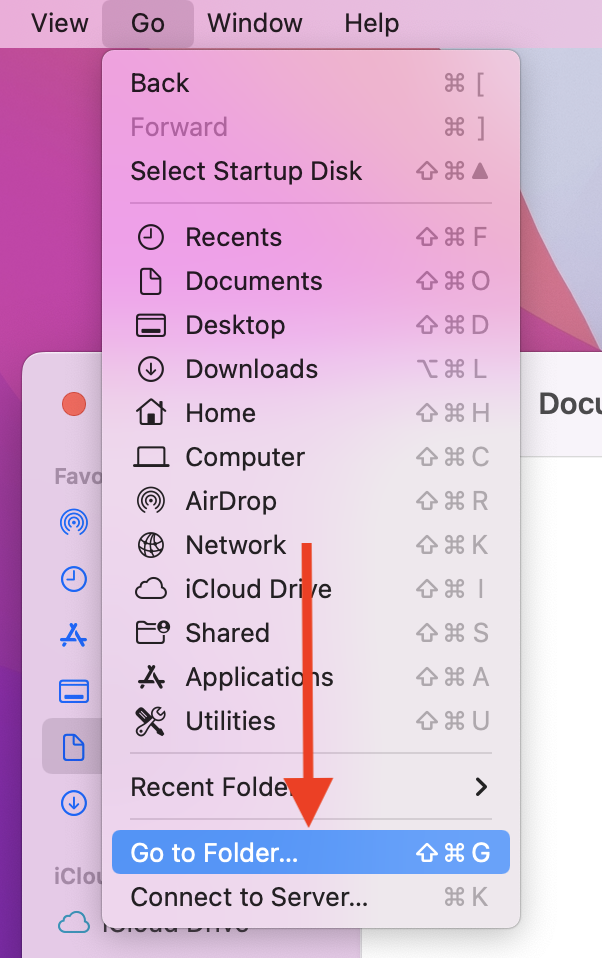
For total control, manually deleting save files ensures no trace of your old game remains.
Locate Save File Directory
Hunting Simulator 2 stores saves in a hidden folder:
C:\Users\[YourUsername]\AppData\Local\ExcaliburGames\HuntingSimulator2\
To access:
1. Open File Explorer.
2. Paste the path above into the address bar (replace [YourUsername]).
3. Press Enter.
🔍 Key Files:
–savegame0.hsg,savegame1.hsg— Your main save files
–settings.ini— Controls and graphics settings
–logs\folder — Useful for diagnosing errors
Delete or Backup Saves
To reset:
– Delete all .hsg files to erase progress.
– Or, copy the entire folder to your desktop or external drive to back up your current game.
On next launch, the game creates fresh save files, giving you a true clean start.
💡 Expert Note: Steam Cloud can restore old saves even after manual deletion. To prevent this, disable Steam Cloud before deleting:
– Right-click game in Steam → Properties → Sync → uncheck “Enable Steam Cloud synchronization.”
Reinstall the Game for Full Reset
If your game still loads old data or crashes after reset attempts, a full reinstall is your best bet.
Steps to Reinstall
-
Uninstall Hunting Simulator 2:
– PC: Via Steam or Windows Settings
– Console: Hold delete on game icon -
Restart your device to clear temporary data.
-
Reinstall from:
– Steam
– PlayStation Store
– Microsoft Store -
Launch and reset:
– Use Clear Save Data if prompted.
– Or manually delete saves before reinstalling.
✅ Best for: Fixing persistent bugs, crashes, or corrupted settings.
⚠️ Critical: Disable cloud sync before reinstalling to prevent old saves from returning.
Clear Console Cache (PlayStation & Xbox)
Corrupted cache can cause loading issues or prevent proper save deletion.
On PlayStation
- Go to Settings > System > Storage.
- Select System Storage > Manage Storage.
- Choose Clear Cache.
- Restart the console.
🧹 This clears temporary data but does not delete saves.
On Xbox
- Press Xbox button → Profile & system → Settings.
- Go to System > Storage.
- Select Clear local saved games cache.
- Restart the console.
🔄 After clearing, relaunch Hunting Simulator 2. This often resolves startup freezes.
Fix Missing New Game Button
Since the Ranger DLC update, players report the “New Game” button disappeared. This caused confusion—how do you restart?
Why the Button Was Removed
Excalibur Games restructured the menu to integrate Ranger Mode as a core option. Now, the game defaults to two modes:
– Ranger Mode
– Hunter Mode
But here’s the key:
👉 If no save exists, selecting Hunter Mode starts a new campaign automatically.
The “New Game” function wasn’t removed—it was merged with the Clear Save Data tool.
Solution: Clear Data First
To start fresh:
1. Use Options > Gameplay > Clear Save Data.
2. Exit and relaunch.
3. Select Hunter Mode — you’ll begin a brand-new campaign.
🧩 Analogy: It’s like choosing a season of a show. If you haven’t seen Season 1, picking it starts from episode one.
Prevent Common Reset Mistakes
Even experienced players make these errors:
Cloud Sync Restores Old Saves
Steam, PSN, and Xbox Live automatically back up saves. If cloud sync is on, your old game will return.
✅ Fix: Disable cloud sync before deleting saves.
Assuming Restart = Reset
Closing and reopening the game does not reset progress.
✅ Remember: Only Clear Save Data or manual file deletion resets your game.
Skipping Backups
If you’re unsure, back up first.
✅ How to Backup:
– Copy the entire HuntingSimulator2 folder from AppData\Local\ExcaliburGames\.
– Save it to your desktop or external drive.
– Restore later by copying it back.
Final Tips for a Clean Start
- Always update the game before resetting.
- Use Hunter Mode after reset—it’s your “New Game” now.
- If old data returns, cloud sync is likely active—double-check settings.
- Keep one backup of your old save in case you want to return.
By following these steps, you can fully reset Hunting Simulator 2 and enjoy a fresh hunting experience—whether you’re chasing elk in Hunter Mode or patrolling forests in Ranger Mode.
Now, grab your rifle, step into the wild, and start anew.


0 Comments